
'/%3E%3C/svg%3E)


Schnicks Casino
How to use mobile app
Mobile play at Schnicks Casino keeps the same wallet and promo history as desktop. Install a shortcut or use the browser view in minutes.
After you complete Login, you can install shortcuts, enable notifications, and manage deposits from the same profile you use on desktop. Many users also check the latest Bonus campaigns directly from the mobile casino. Brand story and support sit on About us.
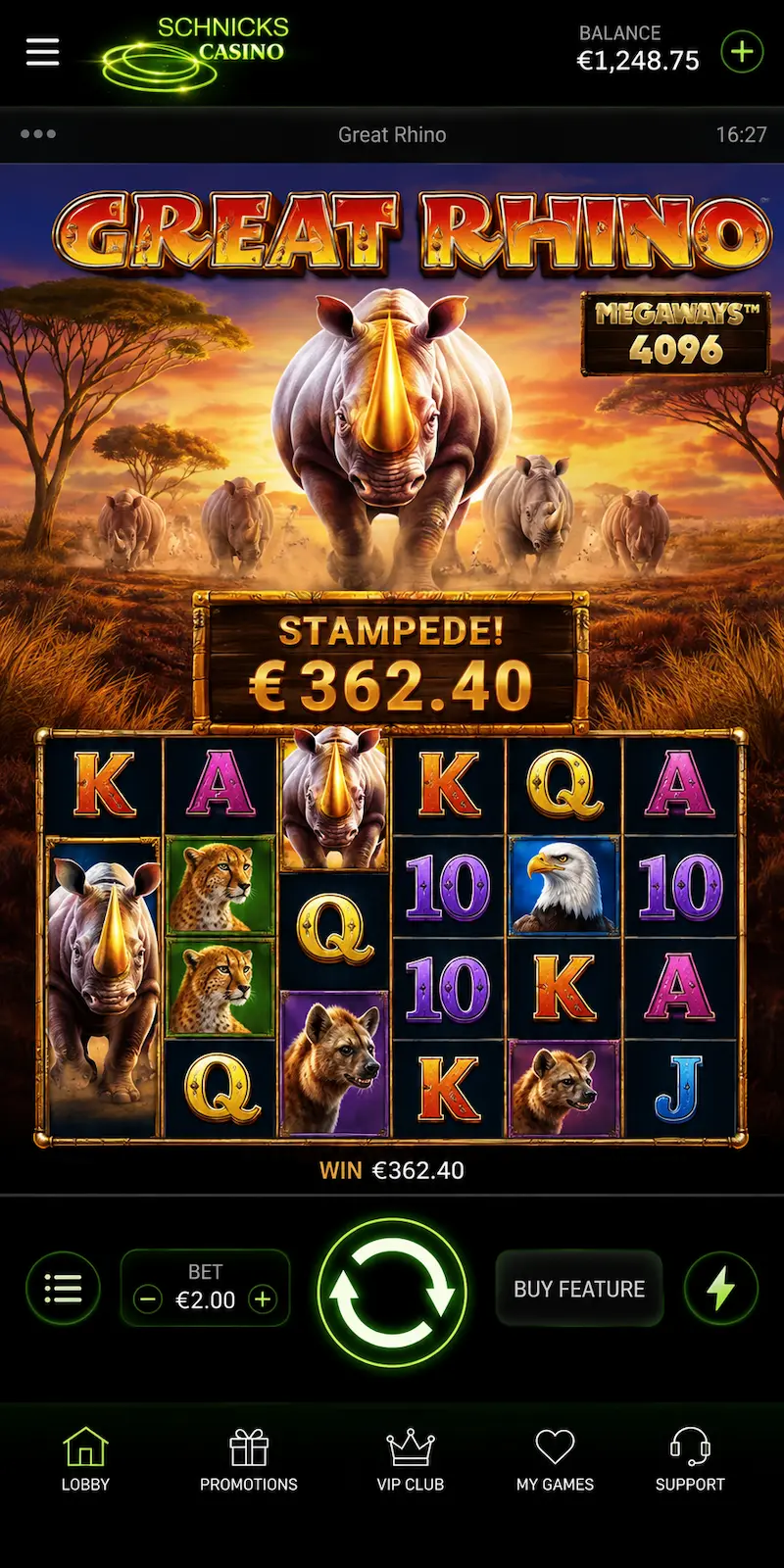
Play on Your Phone
Compare how Schnicks Online Casino runs on your phone. Numbers are typical for casino apps in this market. Only download app files from our official page.
| Phone browser | Installed app | App download file | |
| Install | No install needed | Add to Home Screen | Official app file download |
| Storage | Browser cache only | browser cache only | 25-40 MB |
| Alerts | Limited | Often supported | Full app alerts |
| Best for | Quick sessions | Daily play without an app store | Fixed home-screen icon and extra phone features |
Device Requirements
| Platform | Needs | Network |
| Android phones | Android 8.1+ – Chrome or Samsung Internet | Stable 4G or Wi-Fi |
| iPhone / iPad | iOS 14.5+ – Safari | Wi-Fi preferred for first load |
| Huawei phones | Current EMUI browser + installed app | Avoid unknown download sites |
Install on Android
- Open Chrome on your Android phone and go to Schnicks.
- Tap the menu icon in the top-right corner, three dots.
- Select Add to Home screen or Install app if the prompt appears.
- Confirm the name and tap Add. The icon appears on your home screen.
- Tap the new icon, sign in with your email and password, and allow notifications if you want promo alerts.
If we offer a direct app download in your region, use only the official link from Schnicks. Do not install casino apps from unknown file-sharing pages.
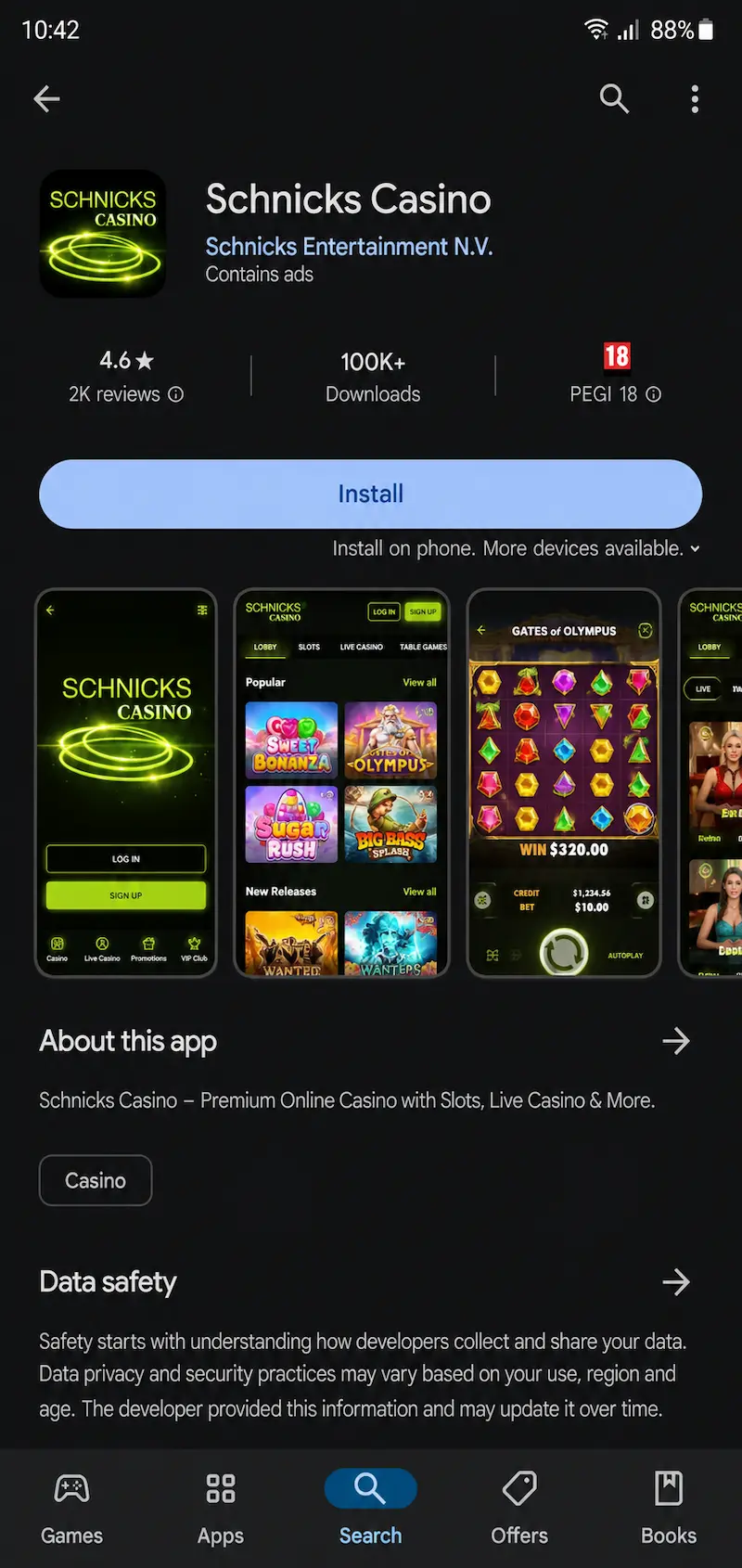
Install on iOS
- Open Safari on your iPhone or iPad and visit Schnicks.
- Tap the Share button at the bottom of the screen, the square with an arrow.
- Scroll down and tap Add to Home Screen.
- Edit the shortcut name if needed and tap Add in the top-right corner.
- Launch the icon from your home screen, log in, and open casino games or the cashier from the menu.
Apple does not always list casino apps in the App Store for every region. The installed app is the safest official route when a native iOS build is not available.
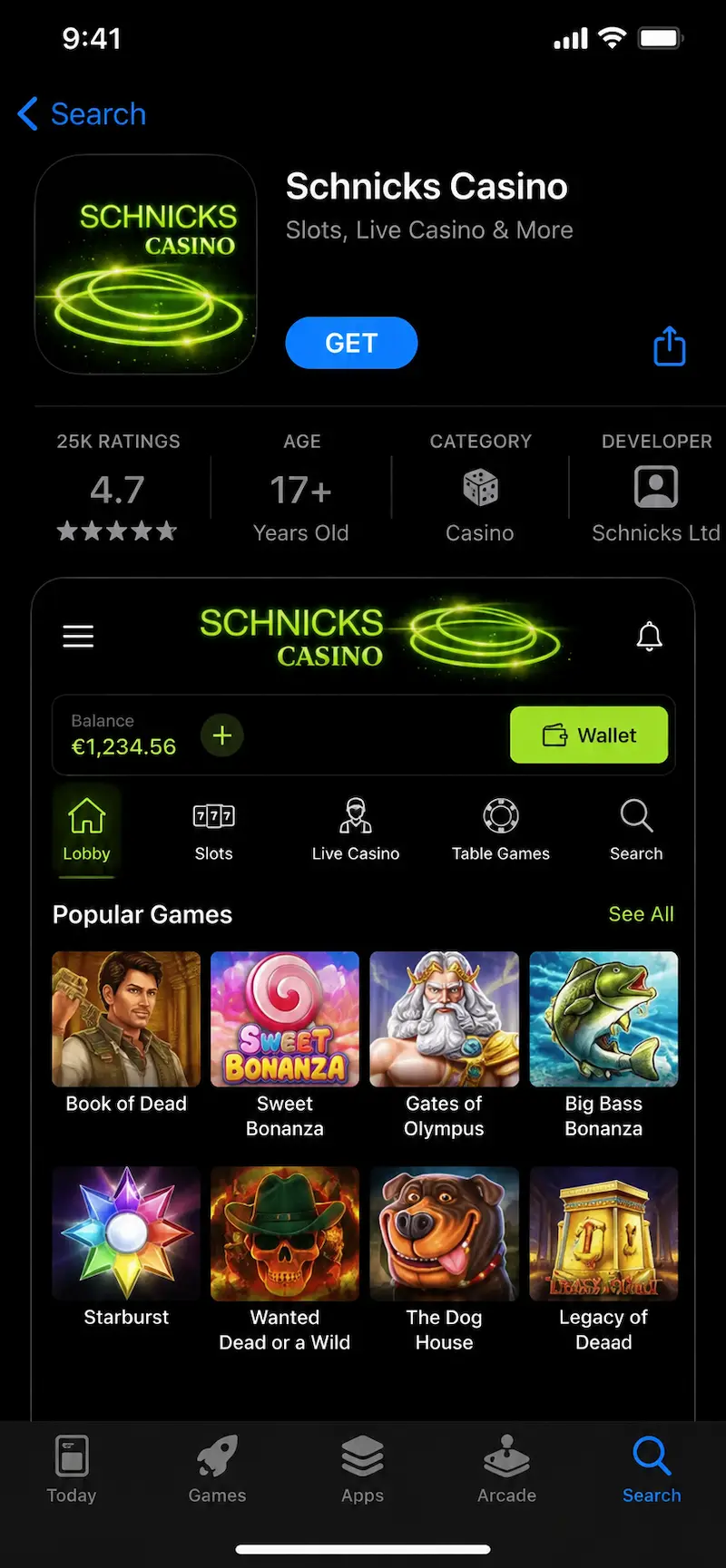
Install on Huawei
- Open the default browser on your Huawei device and go to Schnicks.
- Tap the browser menu, then choose Add to Home screen or Install when shown.
- Confirm the shortcut. If AppGallery does not list our app, do not sideload unknown app files.
- Open the shortcut, sign in, and test a game in demo or real mode after login.
- Enable mobile data or Wi-Fi permissions for the browser if games fail to load.
Huawei devices without Google services still run the mobile site through the browser shortcut. Keep your browser updated for the best performance.
Features on Mobile
- Full online casino game list with search and favourites
- Secure deposits and withdrawals from the wallet section
- Live chat or support links where available
- Responsible gaming tools such as limits and session reminders
Performance may vary by device and connection. For the best results, keep your operating system and browser updated. If a game fails to load, refresh the session or switch to Wi-Fi before contacting support.
Compatibility and Updates
Schnicks supports current versions of major mobile browsers. App updates may roll out automatically or through the official download page. Always install updates from official sources only.
Explore Schnicks app titles and jackpots from the mobile catalog after login. For legal and privacy information, see our Privacy Policy, Terms and Conditions, and Responsible Gaming resources.